Why Are Your Campaign Visitors Landing on an Error Page Instead of Your Product?
Picture this: a small perfume shop owner runs a paid Instagram ad and pays for every click. A visitor taps the link with excitement, but lands on a white page that says "404 – Page Not Found." What do they do? They close the app immediately and probably forget your store name forever. You lost the cost per click, you lost a perfume sale, and you lost the visitor's trust before it even started.
This problem is more common than you think. A clothing store owner copies a product link from her browser and posts it in an Instagram story, then later discovers the link was for an unpublished draft page. A fitness trainer puts a session booking link on their bio page, but they changed the calendar link and didn't update the old one. A freelance designer sends their portfolio link to potential clients, but the hosting expired. The result is the same: visitors get lost, and opportunities evaporate.
The good news is that this problem is completely solvable, with simple tools you can use today. In this guide, you'll learn the root causes of visitors leaking to error pages, how to build a system that prevents it before it happens, and how to test your links yourself in minutes.
The Five Most Common Causes of Dead Links in Your Campaigns
Before you start fixing, you need to know where the problem comes from. Looking at real-world cases, these causes keep repeating:
1. Forgetting to update links after changing your site structure
If you use an e-commerce platform or a blog, you might change the product or article path without noticing the old links published in ads or bios. Every old link becomes dead.
2. Copying links from the dashboard instead of the public interface
Many dashboards show an internal link that starts with /admin or contains a session ID. If you copy that link and share it, the visitor will land on a login or error page.
3. Hosting or domain expiration
If you host a landing page on a temporary domain or a free service, it might expire and the page becomes unavailable. This happens often with portfolio pages or temporary files.
4. Typos in manually typed links
One wrong character in the domain or path is enough. This is common in emails or text messages where you can't click the link.
5. Links that depend on specific apps
If your link opens an app (like a product link in an app store), it might not work on desktop or on devices that don't have the app. The visitor sees an error page instead of a fallback page.
Notice that most of these causes have nothing to do with the quality of your content or ad, but with link management itself. That means the solution is within your reach.
How to Turn a Dead Link into a Smooth Buying Experience
The goal isn't just to avoid error pages, but to turn any link into a trustworthy gateway. Here are practical steps:
Use short links with your own domain
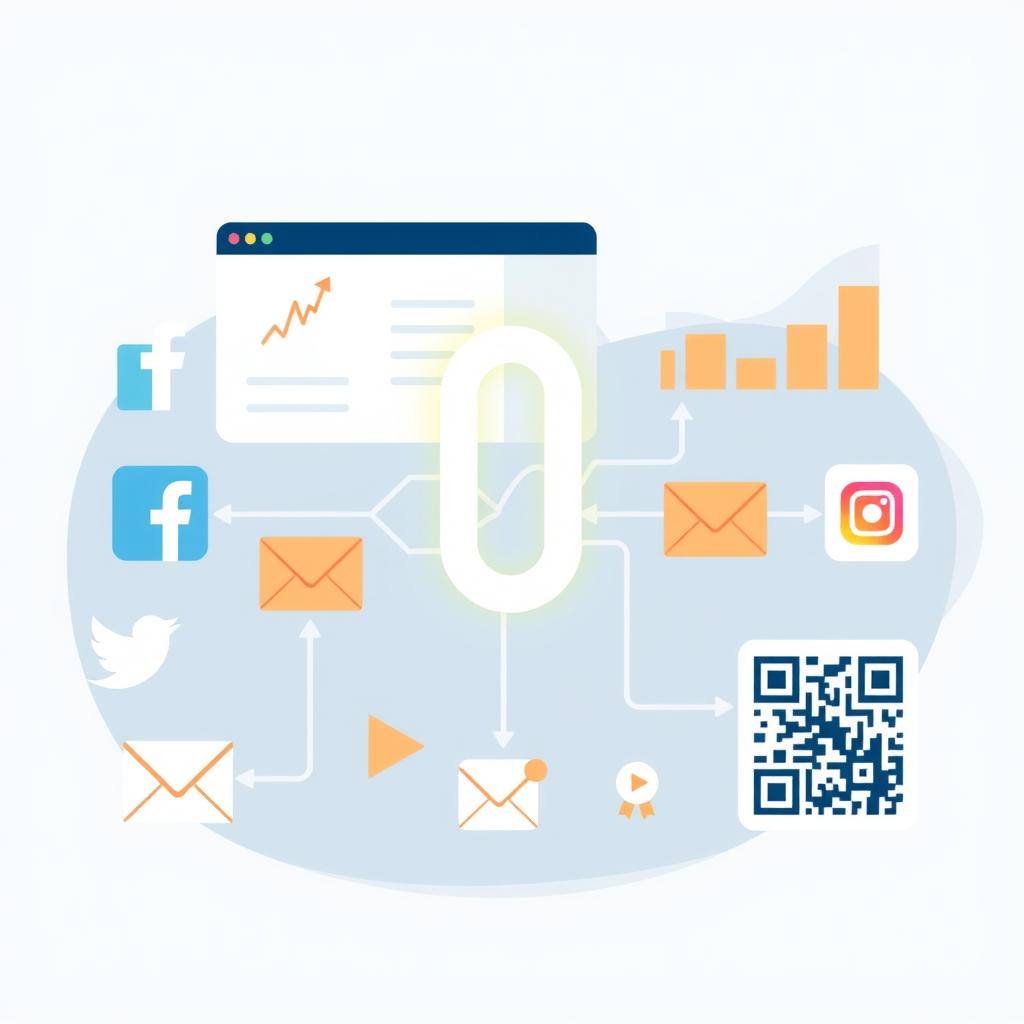
Instead of posting a long, complex link, create a short link with Linki. You can customize the back-half of the link to make it easy to remember, like linki.ws/offers. The most important feature: you can later change the destination (the original link) without changing the short link itself. If your product path changes, just update the destination, and all your old posts keep working.
Add a smart splash page
When you create a short link, you can enable a splash page that appears to the visitor for a few seconds before redirecting. Use it to add a welcome message, a special offer, or clear directions. This page also protects against reaching a broken link if there's a temporary error in the destination.
Take advantage of deep links
If you have an app, you can use deep links to send the visitor directly to the product screen inside the app, with the option to auto-open the app on mobile. If the app isn't installed, you can direct them to a fallback web page. This reduces the chance of them hitting an error page.
Monitor old links and redirect them
Make it a habit to review the links you've published in recent months. If you find a dead link, create a new short link with the same keyword if possible, or update the destination in the old link if it's still active.
These steps don't require technical expertise, and you can do them in less than an hour for an entire campaign.
How to Test Your Links Before Publishing in Minutes
Regular testing is your safety valve. Don't publish a single link without testing it yourself. Here's a simple routine:
1. Open the link in an incognito browser
This prevents cache or auto-login from affecting the result. Make sure the page appears correctly for a new visitor.
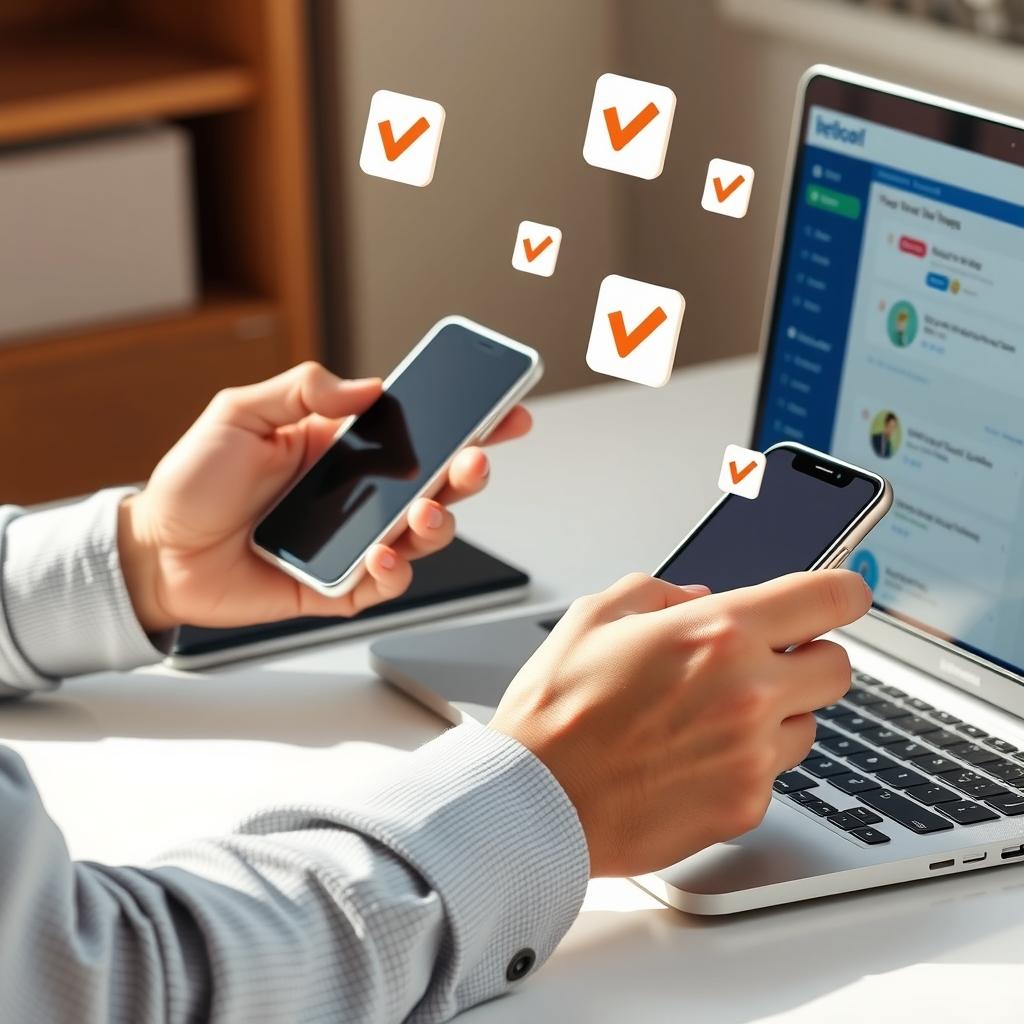
2. Try the link on mobile and desktop
Results can differ. A page that works on a computer might not work on mobile if it relies on certain technologies. Test on different browsers too if possible.
3. Use free checking tools
Linki offers more than 100 free tools, including a URL redirect checker that tells you if the link redirects correctly or ends in an error. There's also a meta tags checker to make sure the page title and description appear as you want. There are also DNS and SSL lookup tools to confirm the domain works properly.
4. Create a test short link and check it
Before you put the link in your ad, create a test short link, check the destination, then use the final link. This gives you a chance to catch errors without your audience seeing them.
5. Monitor analytics after publishing
After publishing, track clicks and arrival rates. If you notice high clicks but very low time on page, there might be a problem with the destination. Linki analytics show you countries, cities, browsers, and devices, which helps you spot any strange pattern.
Make this test a weekly habit. Five minutes can save you from losing hundreds of paid clicks.
What to Do If the Dead Link Is App-Related
App links are the most prone to problems. A visitor clicks a product link in an app store, but they're using a device that doesn't support the app, or they don't have the app installed. The result: an error page or an "app not available" message.
The solution lies in using deep links with the option to auto-open the app on mobile. When you create a short link in Linki, you can enable deep links to send the user to a specific screen inside the app. If the app isn't installed, you can set a fallback web link (like the product page in your online store). This way, the visitor never reaches an error page.
This feature is especially useful for stores that have a mobile app, and for creators who distribute content exclusively through the app. Even if you don't have an app, you can use regular short links with a splash page that tells the visitor what to do.
Remember, the goal is to reduce friction. Every extra click or error message means losing a potential customer.
How to Protect Your Visitors from Risky External Links
Not all error pages come from technical mistakes. Some might be intentional from malicious parties trying to exploit your link. If you publish links to external sites (like affiliate links or partnerships), the destination content might later change to something harmful.
To protect your audience, you can use short links with a password. The password protection feature prevents anyone without the password from accessing the destination. This is useful for exclusive content or special offers. You can also use encrypted destination URLs to hide the original link and prevent tampering.
If you publish content that might be sensitive, you can enable a sensitive content warning on your bio page, so visitors see a notice before proceeding. This builds trust and protects you from complaints.
Finally, monitor the links you publish on your bio page. Use Linki analytics to see which links get the most clicks, and review their destinations regularly. If you notice a sudden drop in clicks or an increase in bounce, there might be a problem with the destination.
Free Tools to Help You Check Your Links Today
You don't need a paid subscription to start. Linki offers a set of free tools you can use directly from your browser:
- URL redirect checker: shows you the redirect chain and reveals any loop or error.
- Meta tags checker: makes sure your page title and description are suitable for sharing the link on social media.
- DNS, SSL, and Whois lookup: to confirm the domain works and the security certificate is valid.
- UTM link generator: to create your campaign links with accurate tracking parameters, making it easier to know which campaign brought the visitor.
- WhatsApp and PayPal link generators: to create chat or payment links that work on all devices.
Use these tools before every campaign. Set aside five minutes to check your main links, and you'll save yourself a lot of headaches.
Remember that checking isn't just for new links. Re-check old links every month or two, especially if you use external hosting or a temporary domain.
Key Takeaways
- Use short links with your own domain for every campaign, and update the destination when needed instead of changing the published link.
- Test every link before publishing in an incognito browser and on mobile, and use the free URL redirect checker.
- Enable deep links if you have an app, with a web fallback for those who don't have the app.
- Monitor analytics weekly to spot any drop in clicks or strange behavior.
- Review your old links regularly and fix dead ones before they cost you customers.
If you want to put these steps into practice, you can try Linki at https://linki.ws and start creating safe short links for your upcoming campaigns.